Using Watchdog
This page covers the day-to-day work of an investigation, task by task: adding documents, checking what Watchdog found, working through what it flagged, asking questions and keeping your investigations in order. Read Getting started first if you have not added your first documents yet.
#Finding your way around
The sidebar groups the screens. Overview, Documents, Entities, Timeline and Network are under Investigation; Context, Watchlist, Review, Search, Ask Claude, Web research and Reports under Work; Activity and Settings below them. The investigation's name sits at the top: click it to switch to another investigation, see all of them, or create one. The app's version is at the bottom.
Press ⌘K (Ctrl+K on Windows and Linux) anywhere to jump to an entity, a document or a screen by typing part of its name, or to start a search or a question. View has a shortcut for each Investigation screen, from Overview to Network (⌘1 to ⌘5, or Ctrl+1 to Ctrl+5), and Ctrl+Tab and Ctrl+Shift+Tab move to the next or previous item in the sidebar, in order, on every computer. ⌘[ and ⌘] (Ctrl+[ and Ctrl+] on Windows and Linux) go back and forward through the screens you have visited; on Windows and Linux, Alt+← and Alt+→ do too, except while you are typing. Help → Take the Tour walks through the app one screen at a time, using the sample investigation.
The Overview is the investigation's front page. It opens with Start here, a short list of the items in Review most worth your time (see Start here), and one line on what is new. Until you first open Review, it says what the latest batch added, such as "The latest batch added 6 contradictions and 4 leads, plus 12 tidy-up items." After that, it says what has come in since you last opened Review and is still open; when nothing has, there is no line. Below are the headline from the latest briefing and the briefing itself. At the side, Needs your judgement counts the contradictions, leads (relationships the AI model inferred), watchlist alerts and disputed facts waiting for you; the number beside the heading counts these only. Tidy-up, folded to one line under it, totals the possible duplicate documents, possible same entities, document requests and gaps in the record, which you can work through in bulk; click it to see all four. In progress lists what is still being added. Each item links to the screen that deals with it.
Watchdog remembers when you last opened Review in each investigation. In Review, each item a batch added since then is labelled New.
A typical loop, once the first batch is in: add documents, read the briefing, work through Review, then ask questions. After a substantial batch, Find connections in Ask Claude looks for connections you did not think to ask about.
#Adding documents
Drop files or folders onto the window, or choose Add documents (top right, or File → Add Documents…). The dialog takes you through four steps:
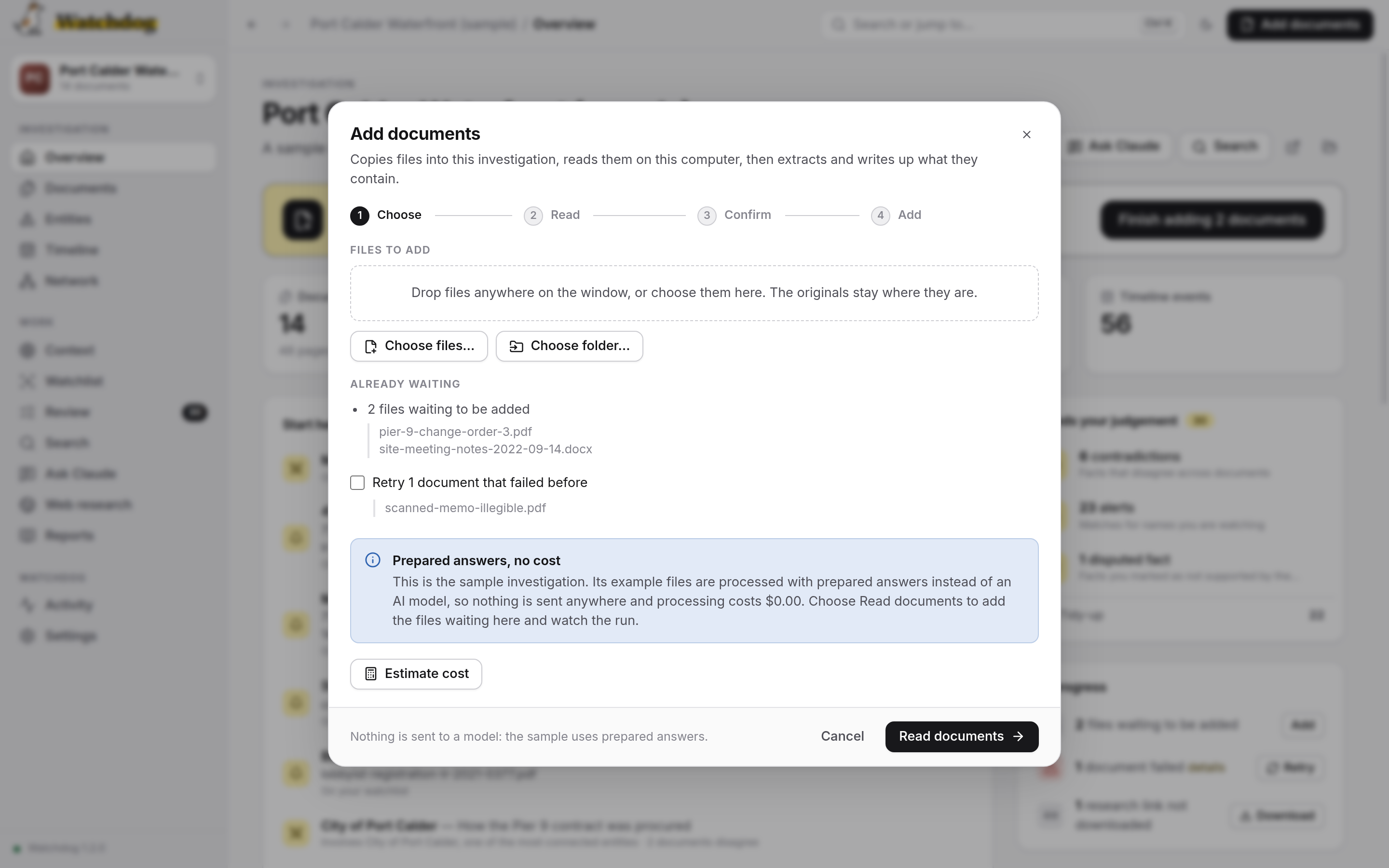
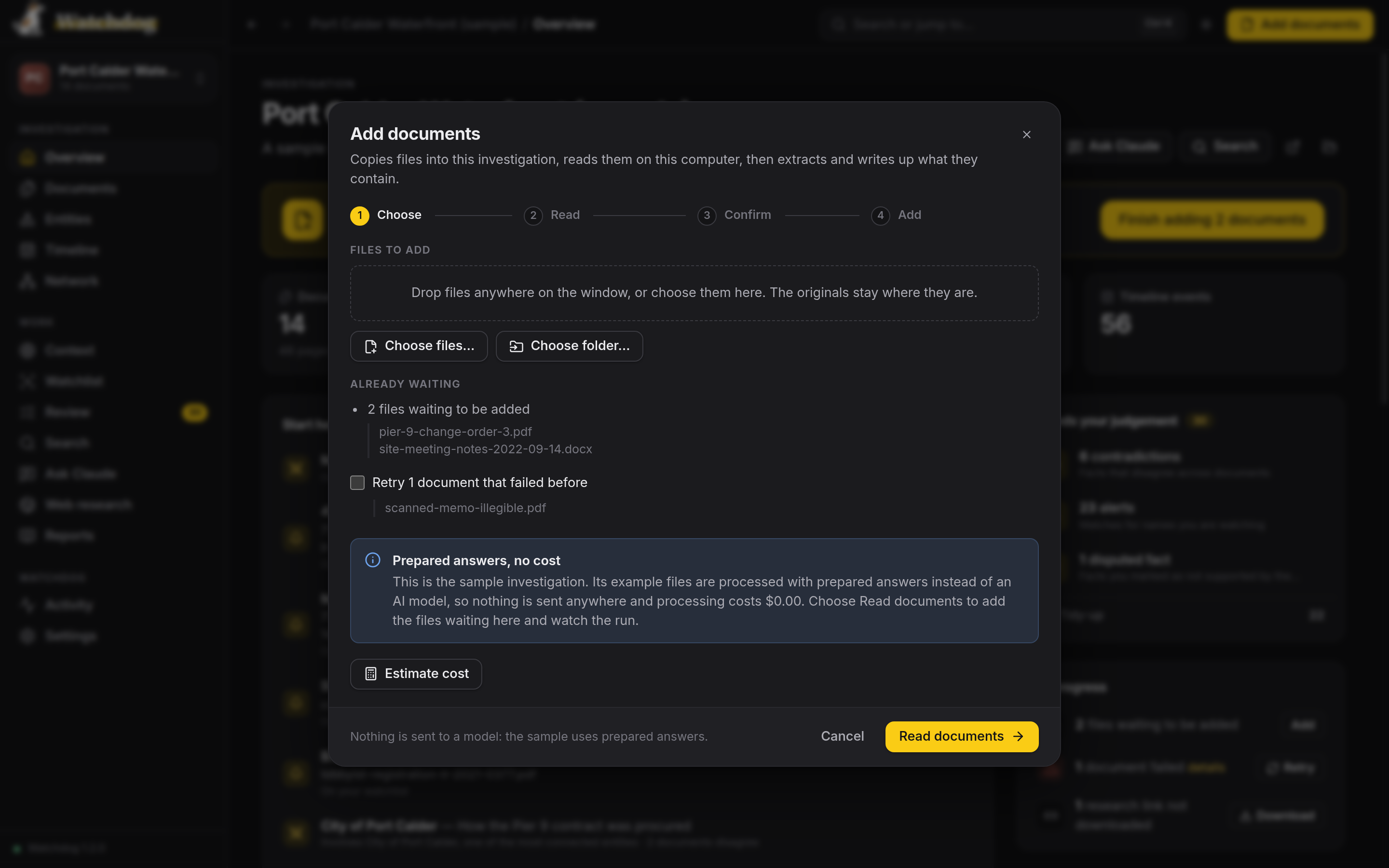
- Choose. Pick files or folders, or drop them onto the open dialog: the list of files to add lights up while you drag, and dropped files join it. The dialog also lists anything already waiting in the investigation, file by file, such as pages from Fetch Links or documents read but not yet extracted, and offers to retry documents that failed before. Options holds every setting for this run only: models, effort, Documents at once, Record skill, Second-read check, Wait out rate limits and the rest. A model or effort left on its setting says under it which model, or which effort, the run will use. Estimate cost shows what the run is likely to cost, and Compare all models shows the estimate for each model.
- Reading documents. The files are copied into the investigation (the originals stay where they are) and converted to text on your computer, with OCR (optical character recognition) for scanned pages, and a small model on your computer lists the names and figures on each page for the model that reads them next. Recordings are transcribed here, one at a time; the first one also downloads the transcription model, once. Nothing is sent anywhere during this step.
- Before sending documents to a model. Files that could not be read are listed first, and a file the investigation already has is set aside. If a document is partly in another language, for example some pages in English and some scanned pages in French, Watchdog says so here and offers Read again in French: it reads those scanned pages again in their own language, on your computer, before anything is sent. It costs nothing; without it the pages are added as first read. (A document mostly in one other language needs no question: its scanned pages are read in that language as it is read. See how the language is decided.) Then the public-records warning, with the number of documents, which model receives them and, if you keep more than one key, which key pays. Nothing is sent until you choose Acknowledge and add. With Auto-approve on and every step on your Claude subscription, this step is a short notice instead; when every step runs on a model server on this computer, it is skipped.
- Adding. Each document is extracted, then the finishing steps write everything to the investigation and produce a briefing. Hide closes the dialog while the run continues, with its progress in the corner of the window. Stop ends it cleanly, and adding again resumes it.
You can add more files at any point. Dropped at step 3, they take you back to step 1: the documents already read stay waiting, so the next confirmation covers them and the new ones together. Dropped while documents are being read, they are read next, before anything is sent. Dropped during a run, they are listed in the dialog to read when it finishes.
The run stays with the investigation you started it in. If another investigation is open when the pause or the finished run appears, the window says so, with Switch to that investigation.
Rename files before adding them. Watchdog labels documents by their filename: shell-co-annual-report-2023.pdf is useful; scan0042.pdf is not.
Duplicates are handled automatically. A file byte-identical to one already added, under any name, is set aside rather than processed twice. Similar but not identical files, such as a redlined revision, are flagged on the Duplicates tab in Review, never skipped.
Right after installing or updating, adding documents waits until setup has finished downloading in the background. The buttons say why, and the Finishing setup… bar at the bottom of the sidebar shows how far along it is.
File → Fetch Links… downloads web pages from a list of addresses into the investigation. They wait there until the next time you choose Add documents, which reads them along with anything else you add.
#Supported file types
| Format | Extensions | Notes |
|---|---|---|
.pdf |
Text-based, scanned, or a mix; OCR applied page by page wherever the text layer is missing or garbled | |
| Word | .docx |
Tables and formatting preserved |
| Excel | .xlsx |
|
| PowerPoint | .pptx |
|
| Image | .jpg, .jpeg, .png, .tiff, .tif, .bmp, .webp |
OCR applied automatically |
| Web page | .html, .htm |
|
| Plain text | .txt, .csv, .md |
|
| Audio | .mp3, .m4a, .wav, .aac, .ogg, .oga, .opus, .flac |
Transcribed on your computer |
| Video | .mp4, .m4v, .mov, .webm, .mkv, .avi |
The sound track is transcribed; a video with no sound cannot be added |
#Recordings
A recording is transcribed on your computer by a speech-recognition model, before anything else happens to it. A transcript's "pages" are blocks of five minutes, so a fact from a recording cites a time range such as 10:00–15:00 rather than a page; click it to play that passage. Each passage starts with the time it was spoken.
A machine transcript is a draft, not a record. It has no speaker names, so it cannot tell you who said what unless the speech itself does ("Councillor Ferreira, you have the floor"). It mishears names first, then figures and technical terms. Watchdog tells the model it is reading a transcript and to flag names and figures that look wrong, but before you quote anyone, click the timestamp and listen. The model used is set under Transcription.
#Sidecar files
A document's details are where it came from (source), when you got it (obtained), your notes for the extraction model (notes) the record skill it is read with (skill) and the language it is in (language). Every one is optional. They live in a small .yml file next to the document, called a sidecar.
The simplest way to set them is Edit details, which writes the sidecar for you:
- Before a document is added: in the strip above Documents, the pencil beside a file waiting to be added, or one read and awaiting extraction.
- Afterwards: on the document's Details tab.
Changing the source, the date obtained or the notes costs nothing and is saved at once: the document's note shows the new source and date straight away, and its earlier version stays in history. Changing the record skill of a document already extracted means extracting it again, which is billed, so Watchdog shows the same estimate and public-records acknowledgement as Retry extraction and changes nothing until you agree. That is only possible while the document's text is still kept for a retry (as it is for an extraction flagged as having few facts); otherwise the record skill cannot be changed there. The language is used when the document is read, so it can be set only on a file waiting to be added.
You can also write a sidecar yourself, before adding the document. Give it the document's name with .yml added, as in shell-co-annual-report-2023.pdf.yml:
source: https://www.sedar.com/filing/xyz
obtained: 2026-06-05
notes: Check the director change on page 12.
skill: corporate-filings
language: French
source, obtained and notes are kept with the document. skill pins that one document's record skill and skips classification for it, so a batch of mixed document types can be pinned one by one; it must name a skill from Settings → Record skills. language says what language the document is in, as a name (French) or a code (fr), so Watchdog reads its scanned pages in that language instead of working it out; use it when you know and the document has too little text for Watchdog to tell. Any other field is dropped. A sidecar you write yourself is read once, when the document is read, so write it before adding the document; after that, use Edit details. Files saved by Fetch Links and Web research arrive with a sidecar already attached.
#Reading a document
Documents shows every document as a grid of first-page thumbnails or a sortable list. A strip above it shows files not yet in the investigation (waiting, failed or set aside), with Retry (put failed documents back and run them again) and Requeue (put them back without running them). Files that could not be read have Try again (read the same files again) and Remove (move Watchdog's copies to the trash, for when you will add a fixed file); see A file could not be read.
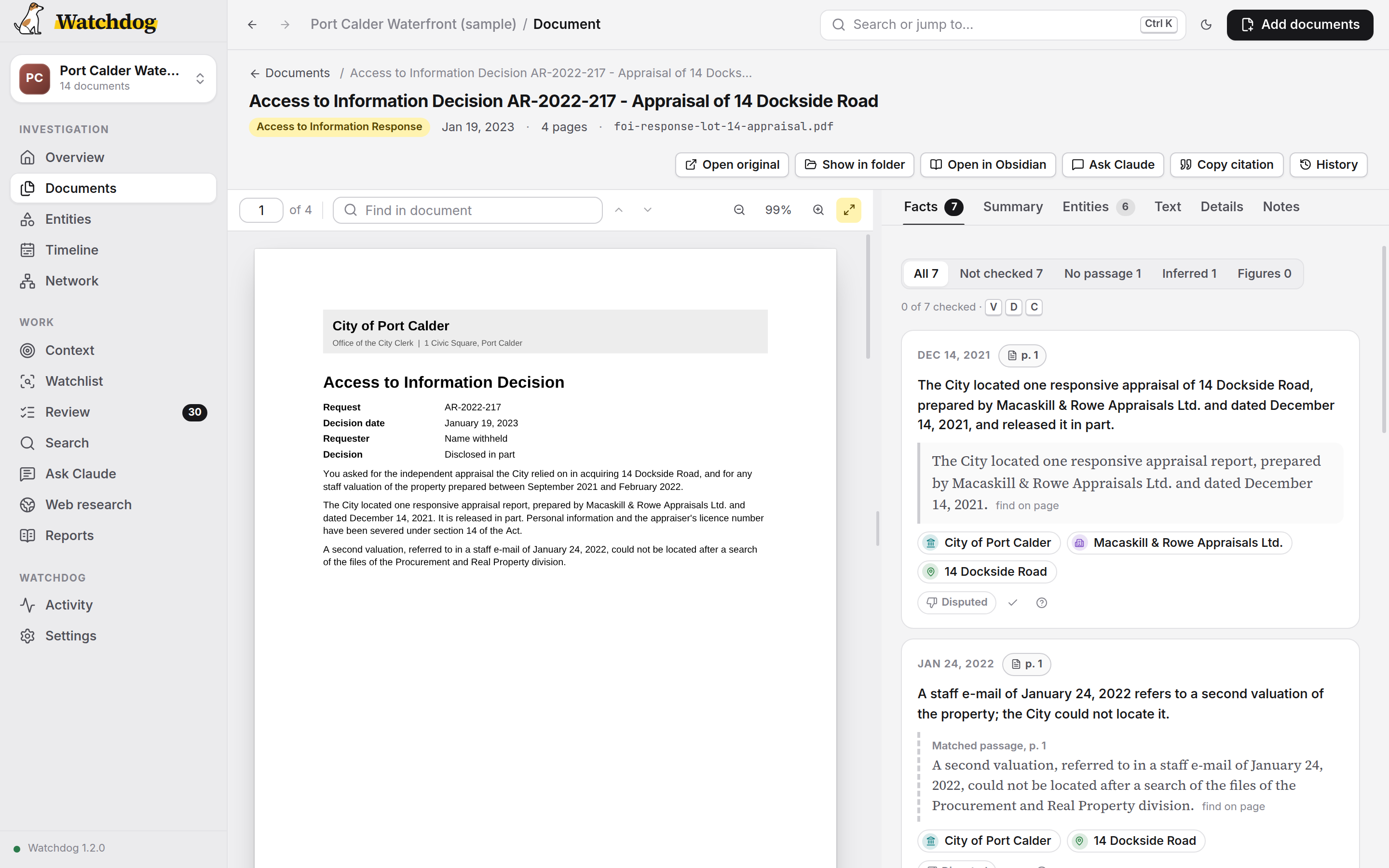
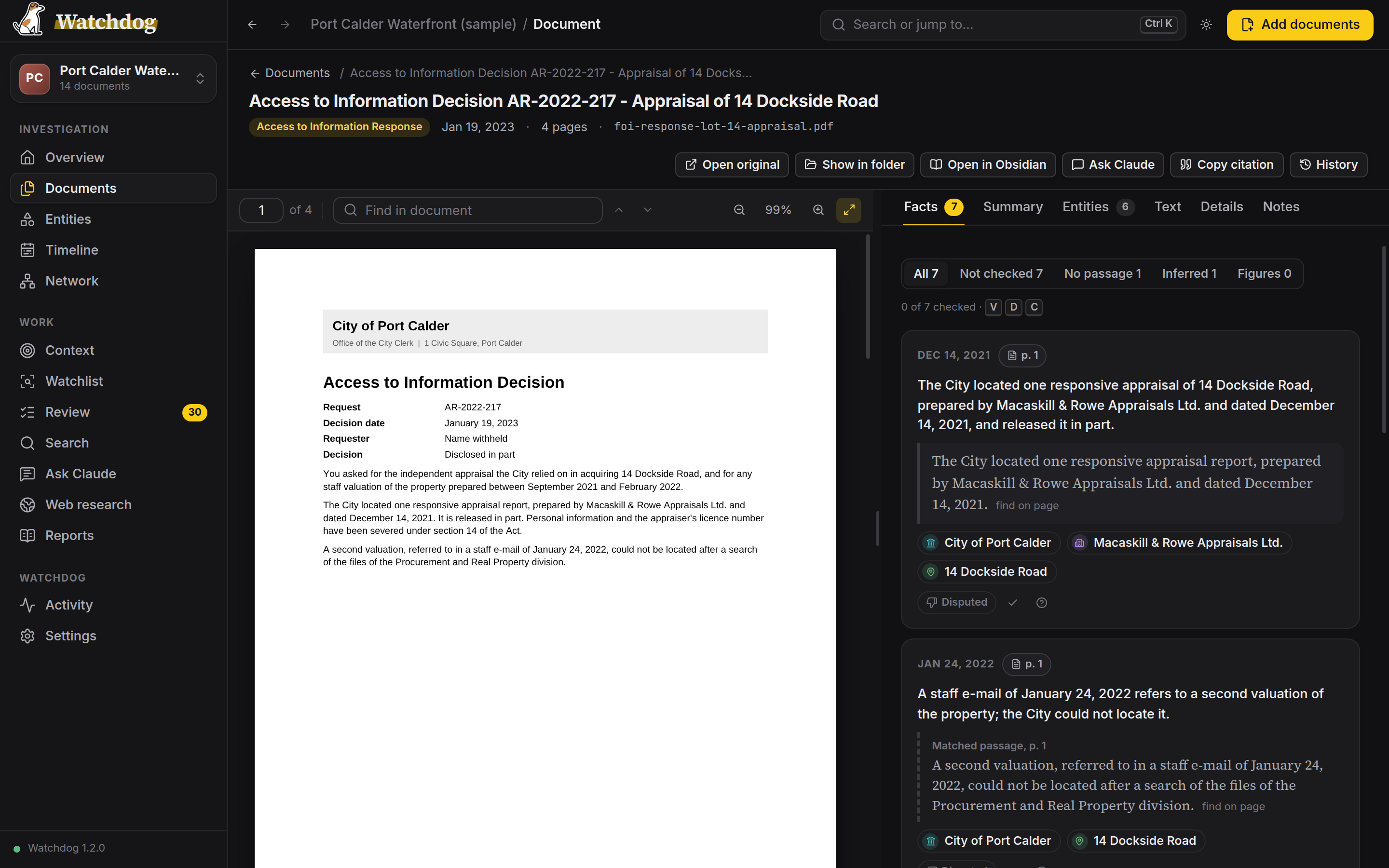
Open a document to read it: the original on the left, with page navigation and zoom, and the facts taken from it on the right. Each fact's page number scrolls the original to that page. Other tabs show the summary, the entities it names, its full extracted text, its details (including what read its text, either the file's own text or the OCR engine that read its scanned pages, the language it is in and which scanned pages were read in that language, and metadata embedded in the file, such as author and creation date, which is a lead, not a fact) and your notes.
Find in document sits above the original in every kind of viewer; press ⌘F (Ctrl+F) to jump to it. It ignores capitals, accents, the style of quotation marks, dashes and line-break hyphens, so "Renee" finds "Renée". On a scanned page, find highlights the match on the scan itself, and you can select and copy its text; the highlight's position within a line is an estimate. When find turns up nothing, Search the extracted text instead opens the Text tab.
A recording opens in a player with its transcript below; the passage being spoken is highlighted as it plays. Some formats (.avi and some .mkv files) cannot be played inside Watchdog; Open original plays them in another app.
#Few facts and Retry extraction
Now and then a model stops part-way through its answer and keeps only one or two facts, even when the rest of the answer looks normal. Watchdog checks for this in two ways. It compares the number of facts with the length of the document's text: about one for every 1,000 words or fewer, where one per 250 is typical, is flagged. And it notices an answer that stopped in the middle, which shows as a placeholder where a fact's quotation should be; this catches short documents too. Either way the document is still added, but it is marked Few facts in the list and its page shows a warning with Retry extraction. The processing log records it too.
When any documents are marked this way, the Documents screen says so at the top, with Retry all… to send them together. A second try usually comes back complete.
Retry extraction (or Retry all…) sends the document again to the extraction model, with your current models and effort, then runs the finishing step. It shows the estimated cost and, where it applies, the public-records warning first, and nothing is sent until you confirm. Anything else waiting to be added stays where it is. The earlier facts stay until the new extraction has been checked and saved; if the new one still has few facts, the warning stays. A short document with few facts is flagged only when its answer stopped part-way, and you can change when the other warning appears under Settings → Processing.
#Text could not be read
Some files carry a broken text layer: the page looks normal when you open it, but the text Watchdog takes from it is a string of codes, usually long runs of digits or symbols, instead of words. A model given that text has nothing to work with, so the document comes back with no facts, or only a note that its text is unreadable.
Watchdog checks each page's text for this before it accepts the extraction. A page is counted as unreadable when hardly any of its words contain a letter, in any alphabet, and most of the rest are not shaped like amounts, dates or counts. Tables are left out of the check, so a financial statement or a spreadsheet full of figures is not flagged. The document is still added, but it is marked Unreadable text in the list, and its page shows a Text could not be read warning naming the pages affected. The processing log records it too.
Retrying the extraction will not help, because the model would receive the same codes, so no Retry extraction button is offered for those pages. Instead, open the original and look at the pages named:
- If they read normally, the file's text layer is broken. Save or print the file as an image (most PDF readers can print to a PDF as an image), or scan the paper copy, and add that copy. Watchdog then reads its pages with OCR (optical character recognition), as it does any scan.
- If they are blank, or really are codes, there is nothing more to get from this copy. Ask the source for a better one.
You can change when the warning appears under Settings → Processing.
#Checking facts
Every fact Watchdog extracts is a claim to check, not a finding. The app gives you what you need to check it, and a place to record that you did.
#Source passages
Under each fact is the text from the document that supports it:
- A quotation, when the model quoted the source and Watchdog confirmed the wording is there.
- A matched passage, labelled with its page. Watchdog found it by comparing the fact's names, figures and dates with the sentences on the cited page, using ordinary code, no AI (see How a passage is found). It is the sentence most likely to be the source, not proof that it supports the claim.
- "No matching passage found", when nothing on the cited page shares enough with the fact. It may combine several passages, rest on reasoning, or cite the wrong page. Read the page yourself.
find on page beside a passage scrolls the original to it.
#Stated and inferred
The model marks a fact (inferred) when it reasoned to it rather than read it in the document. Treat an inferred fact as a lead to verify. But the mark is the model's own hint, not a check: it marks very few facts this way, and an unmarked fact is not thereby guaranteed to be stated in the document.
On an entity's page, a fact that says link inferred reached the entity through a model's judgement: the document named the entity by a label it did not define, such as an abbreviation, and a model matched the label to this entity (see matching labels to entities). The fact itself is as the document states it; check the page to confirm it is about this entity.
Watchdog also checks every number in a fact against the page it cites, and the pages either side, allowing for figures printed in thousands or rounded. Where a number does not check out, the fact carries a note: figure not found in the document — may be derived (usually a total or difference the model calculated; check the arithmetic), or found on another page, not the one cited. Roughly two to three per cent of facts carry one, so a note is worth stopping on. Dates are not checked this way.
#Marking facts
Watchdog uses every fact as extracted until you say otherwise, so you never have to work through them one by one. When a fact is wrong, click Disputed, the thumbs-down beside it: the source, or another record, does not support it. Two smaller buttons beside it, Verified (you read the source and the fact holds) and Can't verify, are there if you want a record of what you checked, for instance before publication. Click a mark again to clear it. Watchdog records your name and the time; set the name under Your name. Once a fact is marked, Add note records what you checked it against. Marking never changes the fact and never calls an AI model.
The bar above the facts filters them (all, not checked, no passage, inferred, figures). Select a fact, then use the keyboard: J and K move, D disputes it, V or C marks it, N edits the note.
A fact you mark Disputed is never hidden. Wherever it appears (the document, the entity, the timeline, Review, citations, the notes on disk and what Claude is told) it carries the label disputed, and the summaries are told not to present it as established.
Review → Verification lists the investigation's facts with the same buttons. It opens on the facts you disputed, then on Worth checking: facts you have not marked that the model inferred, that carry a figure not found in the document, or that have no matching passage on their page. Other filters show can't verify, verified, all facts, and changed since marked, for facts whose wording or page changed after a document was processed again. Your mark stays with the old wording, since you did not check the new words. Every change rewrites verification.md in the investigation's folder, the written record of your checks.
#Review
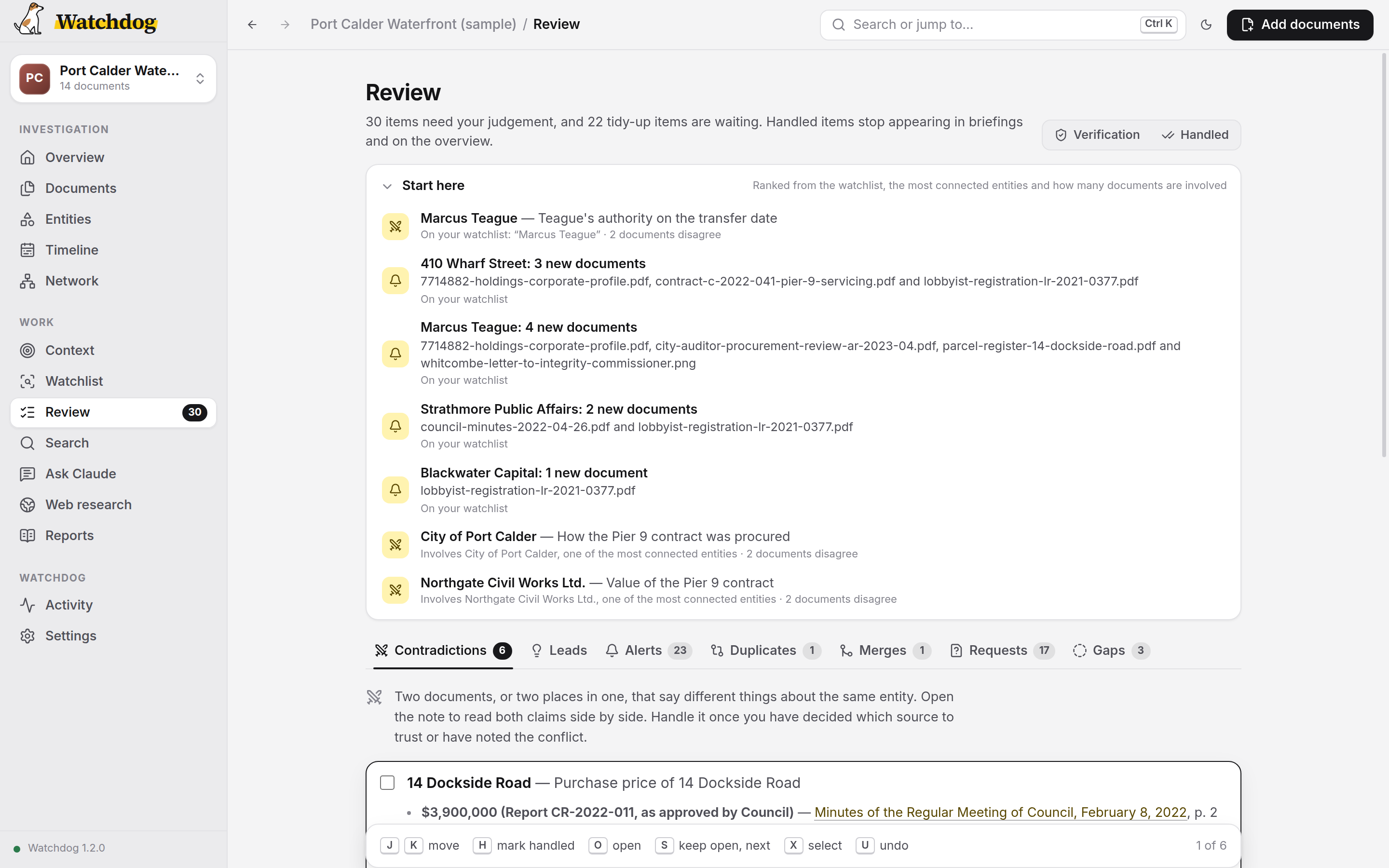
Review is where everything Watchdog flagged waits for you, one tab each. The number beside Review in the sidebar counts the items that need your judgement, as on the Overview; the page's own line also counts the tidy-up. Read an item, open it if you need more, then mark it handled or keep it open. Mark handled removes an item from the queue, the Overview and future briefings, without deleting it; Handled, at the top right, lists what you have handled, and Bring back returns one. The keyboard works throughout: J and K move, H marks handled, O opens, S keeps open and moves on, X selects, U undoes.
Duplicates, Merges, Requests and Gaps are tidy-up, so they are tables rather than cards: one row each, with a tick box. Tick rows with the mouse or X, or tick every row from the box in the heading, then choose what to do with all of them from the bar at the bottom. The row you are on opens underneath with the full detail. On these tabs, H gives the row's everyday answer (not the same, these are copies, or handled) to the ticked rows, or to the row you are on when none is ticked.
#Start here
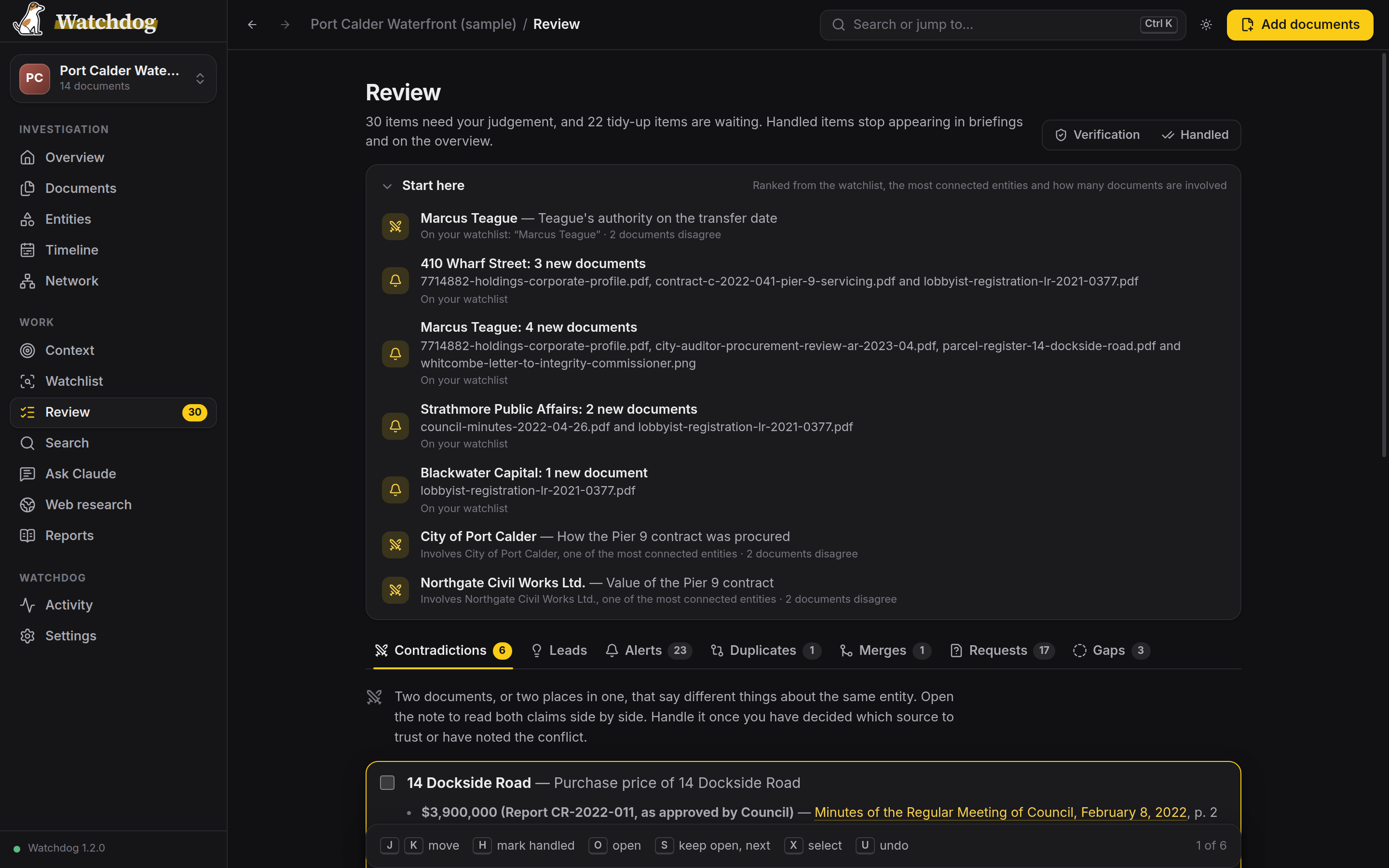
Above the tabs, Start here lists up to seven items to look at first, each with one line on why it is there; the Overview shows the same list. The order comes from ordinary code (no AI), from what the investigation already records:
- An item tied to a term on your watchlist: the alerts, and a contradiction or lead about an entity whose name matches a term. A term's alerts are one item, such as "Harbourline Dredging: 3 new documents", with the documents named; click it to see that term's alerts on the Alerts tab.
- An item about one of the most connected entities (those with relationships to the most others, as in the Network) or about an entity that several documents are mainly about.
- A contradiction between two documents, ahead of one between two passages of the same document.
- A lead (a relationship the model inferred) named in several documents, ahead of one named in only one.
Ties go to the item involving the better-connected entity, then the one in more documents. No kind of item fills more than half the list while others are waiting. The counts elsewhere still count each document a term was found in, since each is a document to read. Tidy-up items never appear here, and nor does anything about an entity you removed. Click an item to go to it on its tab. In Review, click Start here to fold the list away; Watchdog remembers the choice.
#Contradictions
When a document disagrees with something already in the investigation, the item appears here with both claims and their sources, and on the entity's page. Two official records that disagree can be the story. Ask Claude on an item opens a conversation pointed at it. If you spot a conflict Watchdog missed, choose Record a contradiction… from the entity's ⋯ menu.
Each run compares new facts with the facts already recorded, not old facts with each other. Re-check beside an entity's Contradictions heading compares every recorded fact about the entity with every other, after showing how many model calls it takes and what it should cost; Activity → Maintenance → Re-check contradictions does it for every entity. An entity needing more than 45 calls cannot be re-checked, and its button says so. What a re-check finds is filed like any other contradiction, without repeating one already recorded or handled.
#Leads
A lead is a relationship the AI model inferred rather than read in a document: a link between two entities that it reasoned to. Ordinary code (no AI) lists them at the end of every run, with the relationship and the entity it belongs to. Treat each as a suggestion for reporting, not a finding: open the entity, read the documents it cites and decide whether the link holds.
Inferred facts and figures not found in their document are listed under Review → Verification → Worth checking, beside their page, rather than here. The two other kinds of lead the sweep finds, entities named but never profiled and entities that recur with no relationships, are under Gaps.
Copy leads copies the open leads, or the ones you have selected, as a table to paste into an email or a spreadsheet. Run full lead sweep refreshes the list.
#Gaps
Gaps are places the extraction left the record unfinished. They are tidy-up rather than judgement: most are minor, and a large investigation can have hundreds, so they are a table of one row each, worked through in bulk. Ordinary code (no AI) lists them at the end of every run, in two kinds:
- an entity named as a relationship target that has no record of its own: a company someone directs, say, that you have no records on;
- an entity that turns up in several documents but has no relationships.
The row you are on opens underneath. For an entity named but never profiled it shows who names it, how, on which page, and links to each document under Named in. The AI model sometimes points a relationship at something it never wrote down as an entity, leaving only a short label (an id) instead of a name. Before anything is saved, Watchdog tries to match that label to an entity it already has (see matching relationship targets); a label it cannot match stays a gap that says so, and the document is the only way to tell who or what it means. A relationship whose target the AI model matched says inferred beside the target on the entity's page and target inferred on the Network; hover over it to see the label the document gave.
From the open row you can open the entity's page, ask Claude about it, or mark it handled. Tick rows and choose Mark ticked handled to clear several at once; Handled lists them, and Bring back returns one. Copy gaps copies the open gaps, or the ticked ones, as a table to paste into an email or a spreadsheet, and Run full lead sweep refreshes the list. Gaps never appear in Start here and do not count towards the number beside Review in the sidebar.
#Duplicates
Documents judged to be near-copies of one already in the investigation, one row each, with the document it closely matches; the row you are on shows both side by side. Tick the pairs you have checked, then choose These are copies (H) if they are the same record, or Different documents (D) if the difference matters. Neither deletes anything. A copy stays marked as a copy in Documents and on its page; for different documents, the possible-duplicate flag goes from both. Either answer can be reversed under Handled with Bring back.
#Merges
Two documents often name the same person or company, and Watchdog has to decide whether they mean the same one. It never decides on a name alone (see how Watchdog decides two names are the same). Pairs it was unsure about wait at the top of this tab as possible same entities, one row each: both names, how many documents each is in, the strongest evidence they share (the same registration number, say, or the same relationship to the same company) and how confident Watchdog was. The row you are on shows the two records side by side with their facts.
Tick the pairs that are one and choose Merge ticked (M); Watchdog asks first, listing which record each pair keeps: the one named in more documents, or else the longer name. The pairs are merged one at a time, and each merge goes into Recent merges, where it can be undone on its own. If one pair cannot be merged, the others still are, and the tab says which failed and why. Tick the pairs that are not one and choose Not the same for ticked (H); Watchdog never merges those two automatically. To choose which record to keep, use Merge… on the open row instead.
When many records share one name, the queue does not list every possible pair. A short name that cannot be told apart, such as "Mr. Pike" in five documents, is shown as four pairs, each record beside the one named in the most documents. For a name the AI model compared, only the records it could not tell apart are listed.
When three or more records with the same name and type are joined by open pairs, a line above the queue offers Merge all N records named "…"…. This is for a name that turns up in nearly every document, such as a government department, where the pairs would otherwise need a click each. Watchdog asks first, listing the records and the one it keeps: the record named in the most documents, or else the longer name, as with Merge ticked. The records are then merged into it one at a time. Each merge is listed in Recent merges and can be undone on its own, and if one cannot be merged, the others still are and the tab says which failed and why. A record you marked Not the same as another in the group is left out, and Watchdog says so; merging it would join two records you said are different.
Below the queue, Recent merges lists every merge, newest first: which records, how confident the decision was, and who decided (Watchdog's rules, the AI model by name, or you). If a merge is wrong, open it and choose Undo merge; Watchdog gives the merged record back its own facts, documents and relationships, and marks the pair Not the same. Contradictions recorded while the two were joined, your notes and the summary stay with the surviving entity. Where a merge cannot be split exactly, the button says why. The same record is kept in merges.md.
#Requests
Documents your documents refer to but you do not have: the transcript a hearing order cites, an exhibit filed but never attached. Each carries why it matters, where it can plausibly be obtained, and links to the documents that named it.
The table lists the requests most cited first. By likely source, the default, groups them by the office or company the AI model said holds them, so one request letter can cover a group; Most cited first shows one list. The grouping goes by the name at the start of the likely source and ignores what follows a comma, a bracket or words such as "or" and "by", so "City Clerk" and "the City Clerk, by access request" fall together. Two names for one place, such as a registry's official name and a description of it, are grouped by a model when a run adds a source it has not seen (see grouping request sources); such a group says grouped by AI, hovering over it shows the names it joined, and Show apart undoes a grouping you disagree with for good. Each request keeps its own wording. Tick a group's heading to tick all its requests. Copy requests copies them, or the ticked ones, as a table to paste into an email or a spreadsheet. For a document held by a public body, Ask Claude's Draft a records request drafts the request letter: a freedom-of-information, access-to-information or public-records request. Mark requests handled (H) once you have filed them or decided not to. When a run adds a request, a model merges any open requests it judges to name the same document; if one seems missing, check whether it was merged into a differently worded one.
#Entities
Entities lists every person, organization, public body, place, asset and proceeding, with the number of documents each appears in. Search by name or alias, sort, and filter by type, by contradictions or to Single-source entities, named in only one document, which is where a duplicate usually shows up.
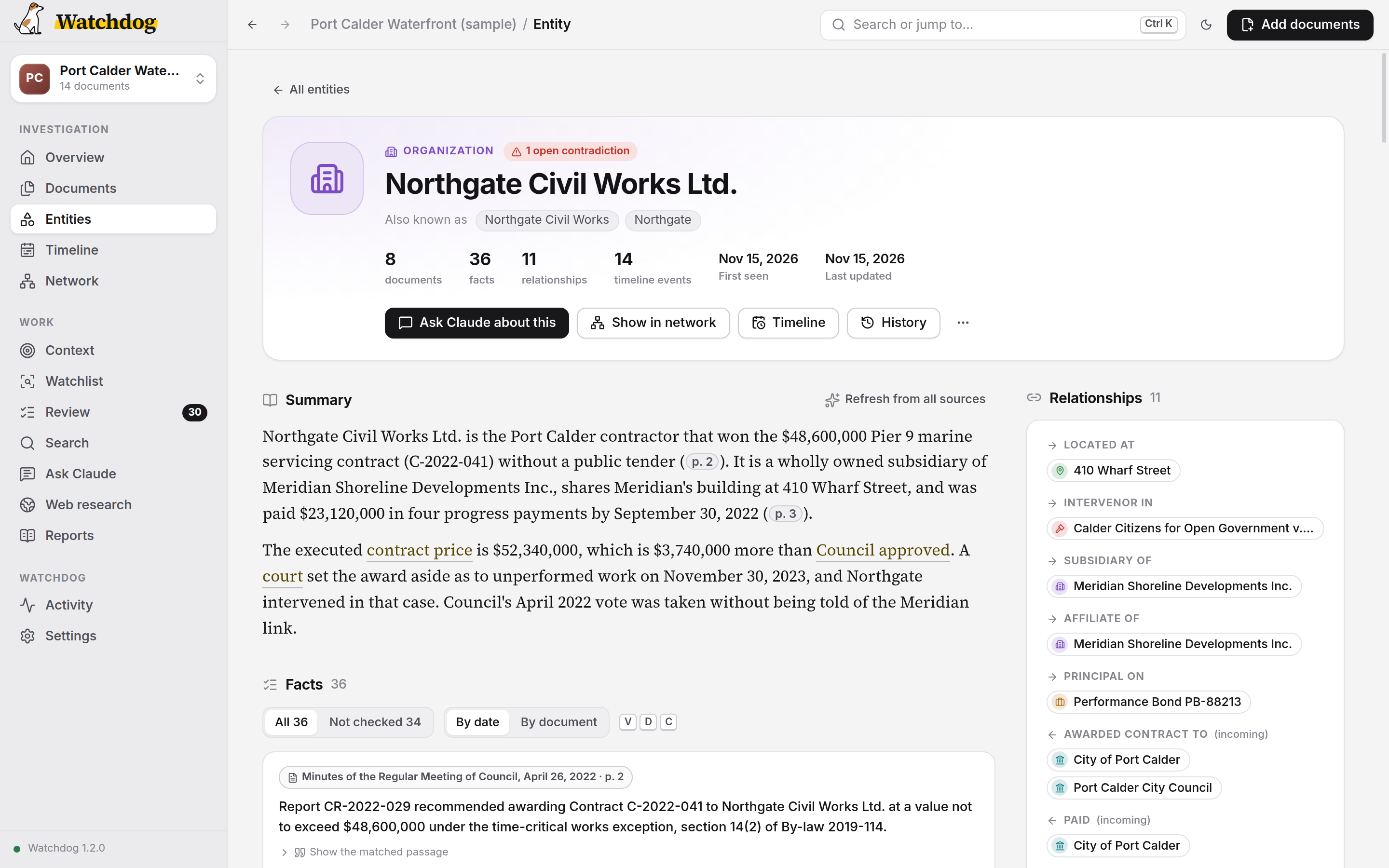
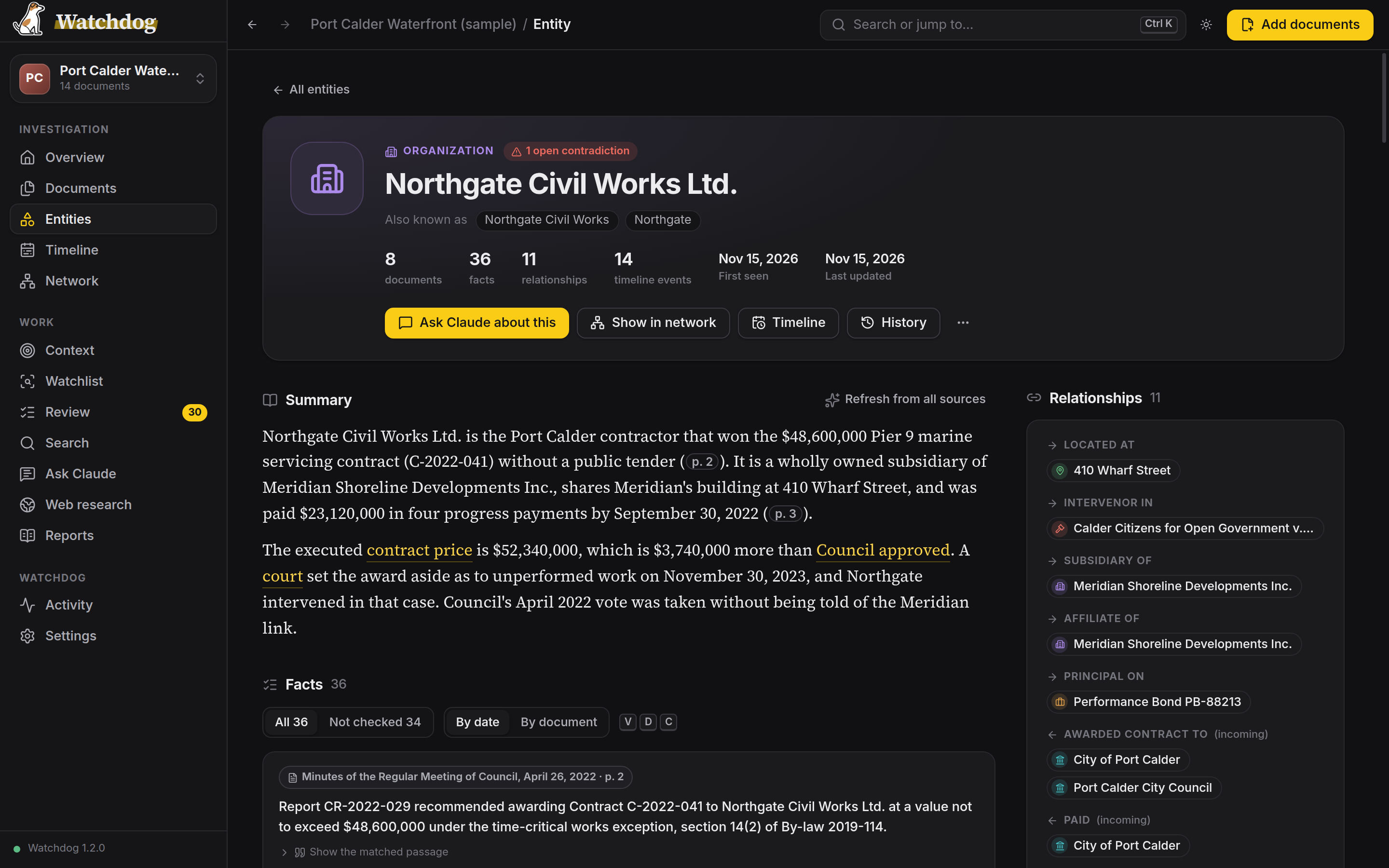
An entity's page shows everything the documents say about it:
- Facts from every document, in the order things happened (or by document), each with its page, any warning and the same marking buttons and keys as the document reader.
- Summary, written by an AI model from the facts once the entity appears in two or more documents. A sentence that rests on a fact ends in a citation such as p. 4 (see Citations). Treat it as a reading aid, and the facts as the record.
- Contradictions, Timeline, Relationships, the documents it appears in, and your notes.
#Duplicate entities
Sometimes one person or company ends up as two entities, usually because a name is spelled differently. Select the two on the Entities screen and choose Merge…, or open one and choose Merge into another entity… from its ⋯ menu. The dialog shows both before you commit. Everything combines onto the survivor, and the merge is recorded under your name; it can be undone from Merges. Afterwards, Rebuild search index removes the merged entity from Search, and Refresh summary from all sources rewrites the survivor's summary.
#Removing an entity
Processing profiles everything the documents name, including things that are not part of your story: an office on a letterhead, a research centre that helped you, your own newsroom. To take one out, choose Remove from investigation… from its ⋯ menu, from a selected dot's card in the Network, or select one or more on the Entities screen. The dialog says what will happen before anything changes.
A removed entity is left out of the Network (with every line to it), the Entities list, entity notes in Search, Review and the counts on the Overview. Documents added later that name it do not bring it back, and neither does Watchdog deciding that a new record is the same thing.
Nothing is deleted. The documents still say what they say: the entity's facts stay in each document's note and in source passages in Search, and other entities keep their relationships to it in their own notes. The AI model also still reads those facts when it writes summaries and briefings and looks for contradictions, so removing an entity does not change what a summary is based on. An export of the investigation's entities still includes it.
Removed entities are listed under Removed at the bottom of the Entities screen's type list, with who removed each and when. Bring back shows one again; it is also on the entity's own page, which still opens. If a removed entity is merged with another, the survivor keeps its own state: it is hidden only if it was removed itself. Undoing that merge removes the split record again.
#Timeline and Network
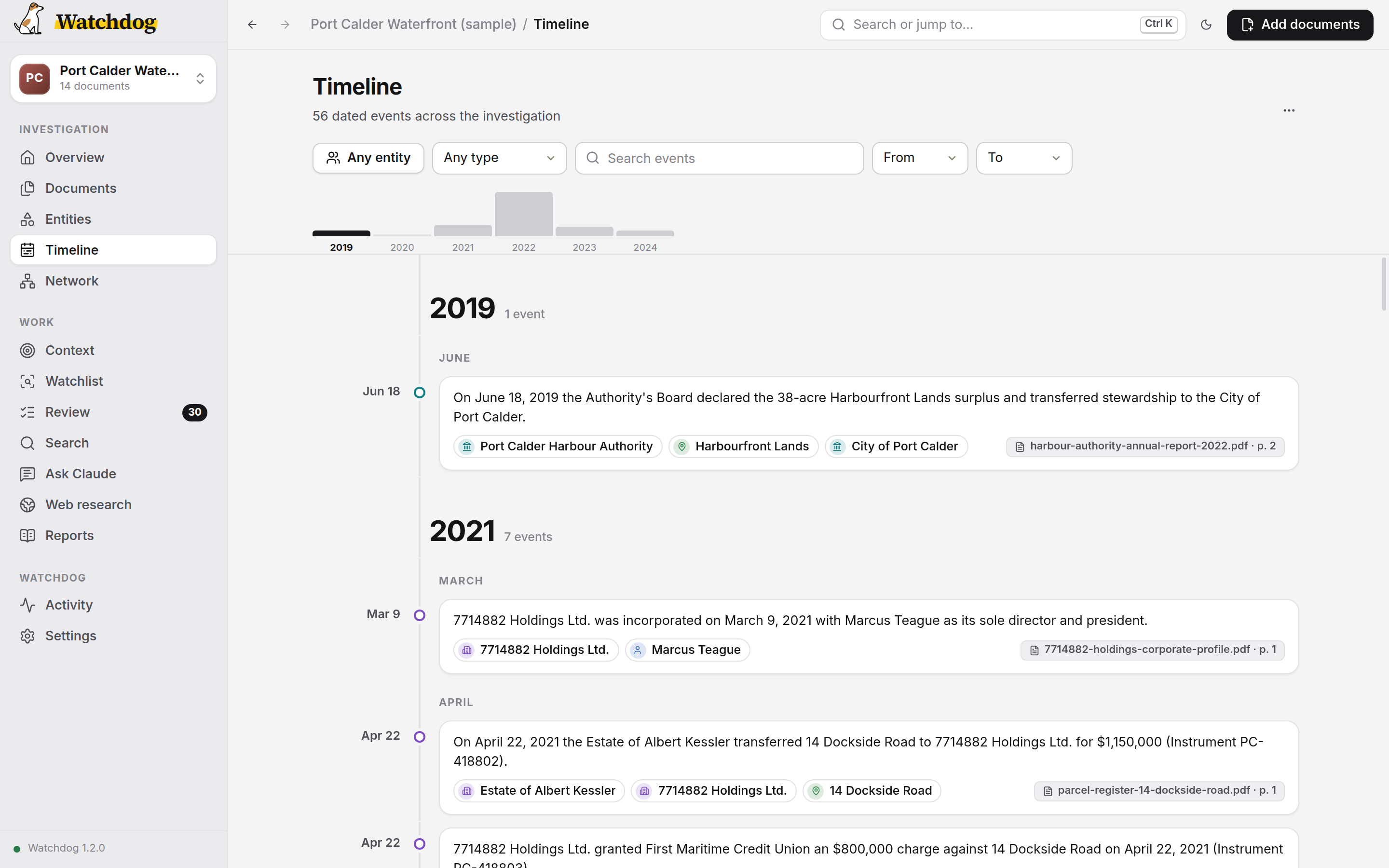
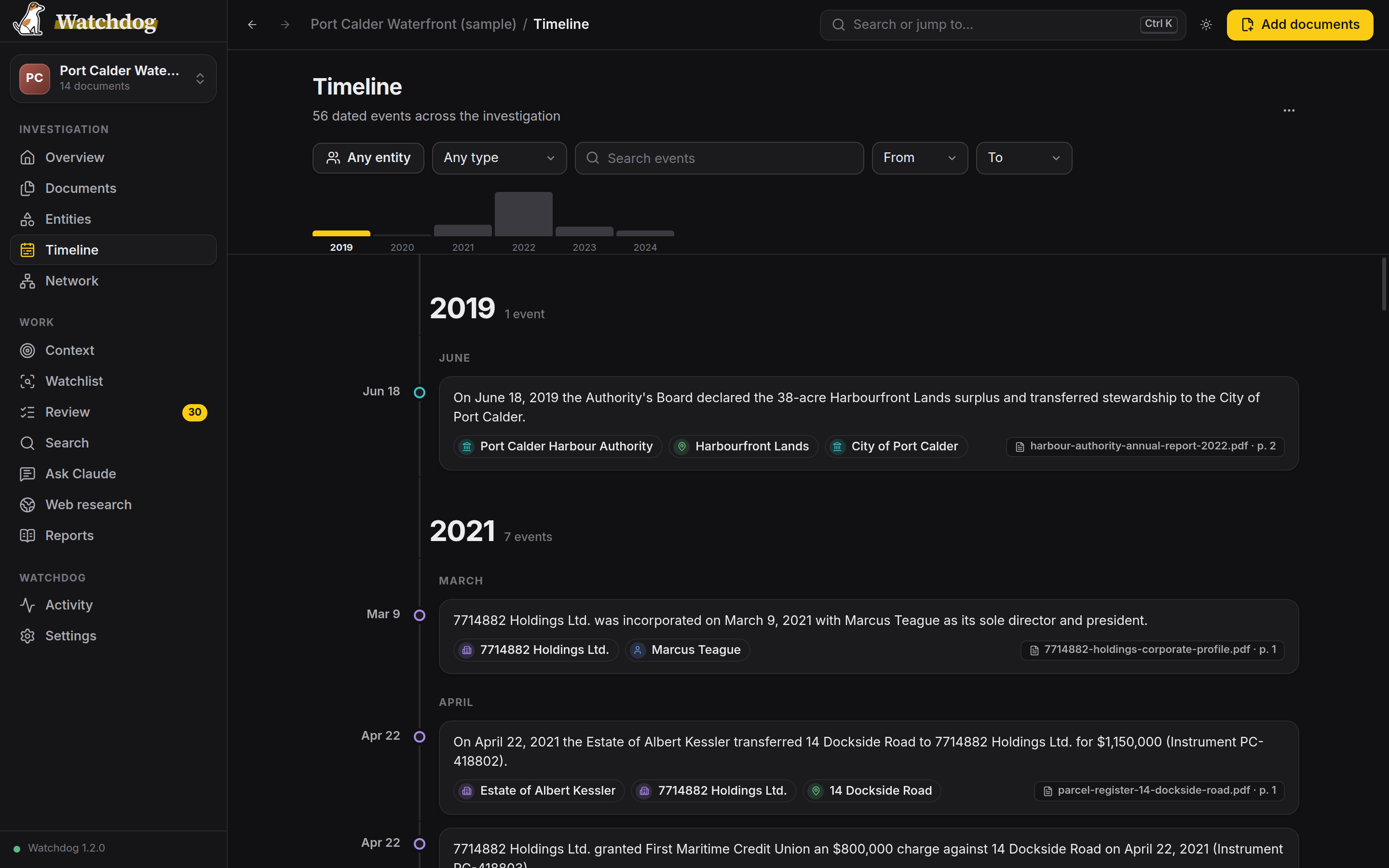
Timeline lays out every dated event by year and month, each linked to its page. Filter it by entity, type, years or a word. An event whose fact you disputed stays, labelled disputed.
An event dated only to a month or a year says month only or year only. One that covers a period is shown as a range, such as "Apr–Jun 2024", under the month it starts, and says range. When a model, not the document's own wording, settled a date (a period, a quarter, a date in words or one written in figures that could be read two ways), the event says date inferred; hover over it to see the date as printed, and check the page before you rely on it. How it works explains how dates are read.
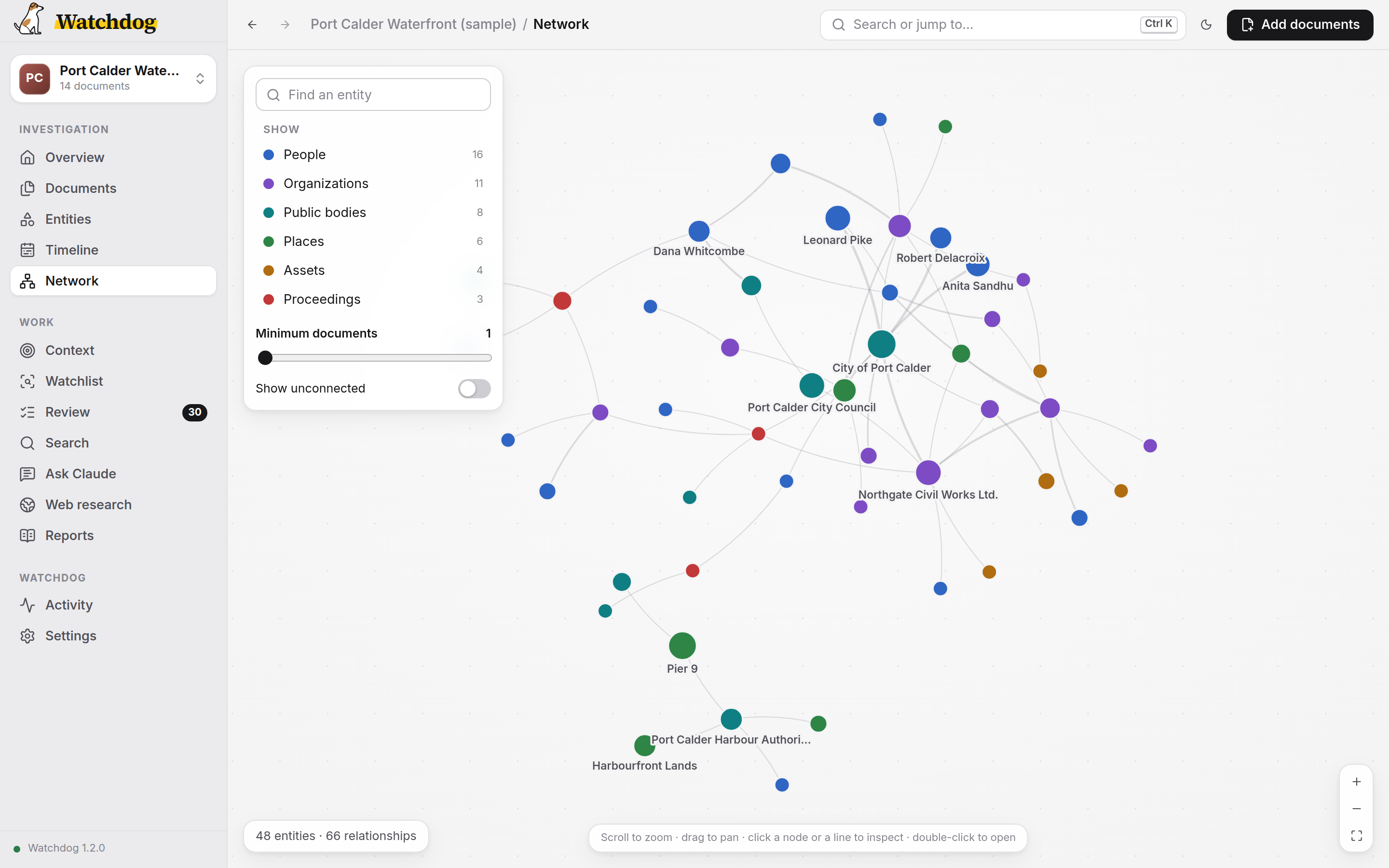
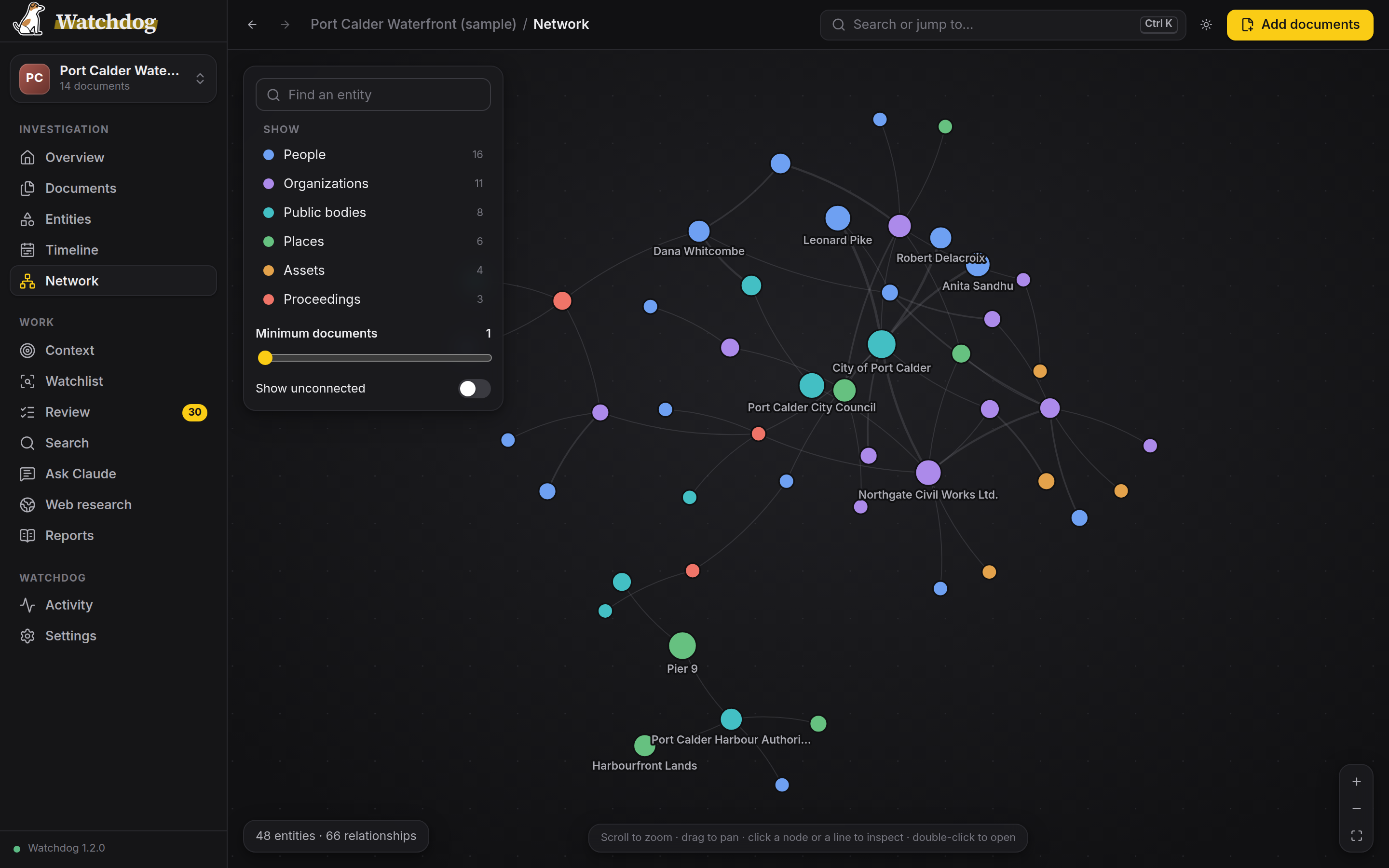
Network draws the entities as a graph: each dot an entity, sized by how many documents name it and coloured by type, with one line between two related entities. Hover over a dot to see its connections, click for details, double-click to open it. Click a line for every relationship between the two, with the documents and pages that state it. When documents describe one relationship in different words ("lawyer for", "counsel for"), it is listed once with each document's own words shown as "As written" (see how wordings are grouped); Show wordings separately undoes a grouping you disagree with. A slider sets the minimum number of documents for an entity to be drawn. To take something that is not part of your story out of the graph for good, use Remove from investigation… on its card (see Removing an entity).
#Search
Search covers the whole investigation without involving Claude, in three sections: exact matches of your words, source passages ranked by how close they are in meaning, and notes (what the investigation has concluded). Searching for "conflict of interest" finds passages about recusals even when the phrase never appears, while a case number or a dollar figure still finds its passage.
Lead a phrase with - to push away from it, or + to pull towards another idea, as in consulting fee +offshore -salary; put quotes around words that must appear together. Options sets how many results each section shows, hides weak matches, and turns re-ranking on or off.
Every investigation checks a name across all your investigations (exact matches and entity names only). Check a list of names checks a whole list, such as a board roster or a sanctions list, and reports what each name hit; a name that could not be checked says "Not checked", never "No hits".
#Citations
Summaries, briefings and the pages Claude saves cite the facts they rest on, with a marker such as p. 4. Hover over it to see the fact and whether you have checked it; click to open the document at that page. A citation of a disputed fact reads p. 4 · disputed. One Watchdog cannot match to a stored fact reads source not found: that happens when a document is processed again and its facts are reworded, when a merge is undone, or when Claude wrote the citation wrong. Activity → Maintenance → Check citations lists every such case.
Sentences without a citation are expected: a model connecting facts or summing up. Anything you publish should rest on cited facts you have checked.
#Context
Context holds the investigation's brief, context.md, and the background material behind it. The brief says what you are investigating, as open questions; it is sent to the model with every document you add and shapes every briefing, so the Overview asks for it until it exists. See Set the context for what to put in it and what to leave out.
- Add background files… copies files you choose (published stories, notes, screenshots) into the investigation's
context/folder. The originals stay where they are, and nothing is added as a document. - Build it with Claude, or Update with Claude once a brief exists, starts a conversation on this screen: Claude reads the background files, interviews you, and writes or updates the brief. If there are none, it asks for some first; add them with Add background files…, which stays above the conversation, and tell Claude when they are in. Background files can be PDFs (scanned or not), Word, PowerPoint and Excel files, saved web pages, images or plain text. Watchdog converts them to text on your computer, the same way it reads documents, so a large file can take a minute; Claude checks any name or figure that came from OCR against the page itself. Past context conversations are listed here too.
- Edit changes the brief by hand, and History shows its earlier versions.
#Watchlist
Watchlist, under Work in the sidebar, holds terms to flag whenever they appear in new documents: a name, a company, an address, a phrase. Matching is case-insensitive and whole-word; wrap a term in slashes, like /14\s+Quay Street/, for a pattern. Every run scans its new documents, and matches appear on Review's Alerts tab with the page and surrounding words, where you mark them handled like any other item. Each term shows how many of its matches are still open and links to them; Edit watchlist on the Alerts tab comes back here. Check every document now checks documents added before a term was. No model is called. The list is watchlist.md in the investigation's folder, and History shows its earlier versions.
#Ask Claude
Ask Claude is a conversation with Claude about the investigation, using only its documents and citing the page for each claim. Each conversation starts with a short account of where the whole investigation stands, which Watchdog builds from its records, so Claude knows the state of things without re-reading everything. Start a new conversation for each new line of inquiry. Reports → Current state shows that account, and What Claude is given shows exactly what Claude receives.
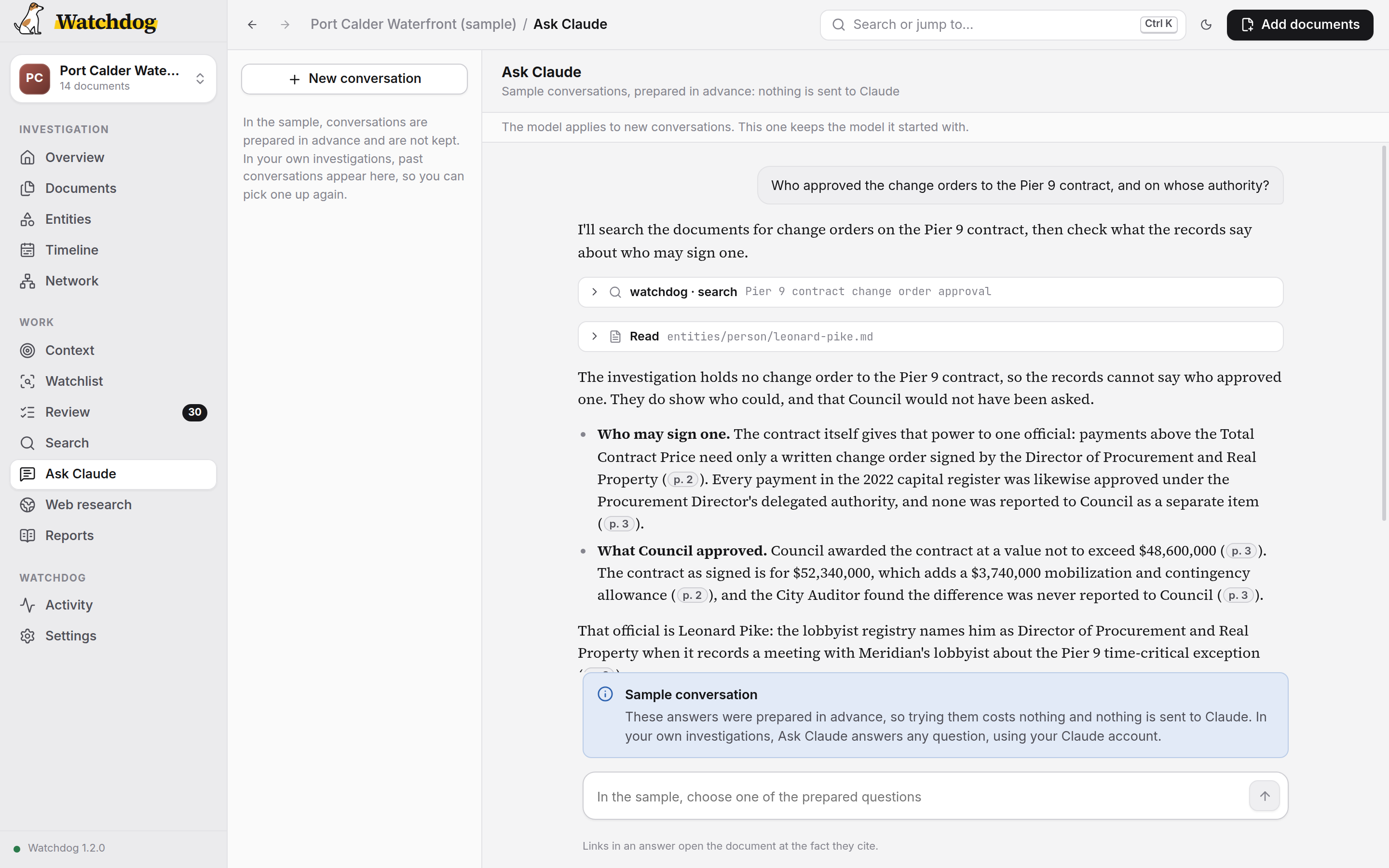
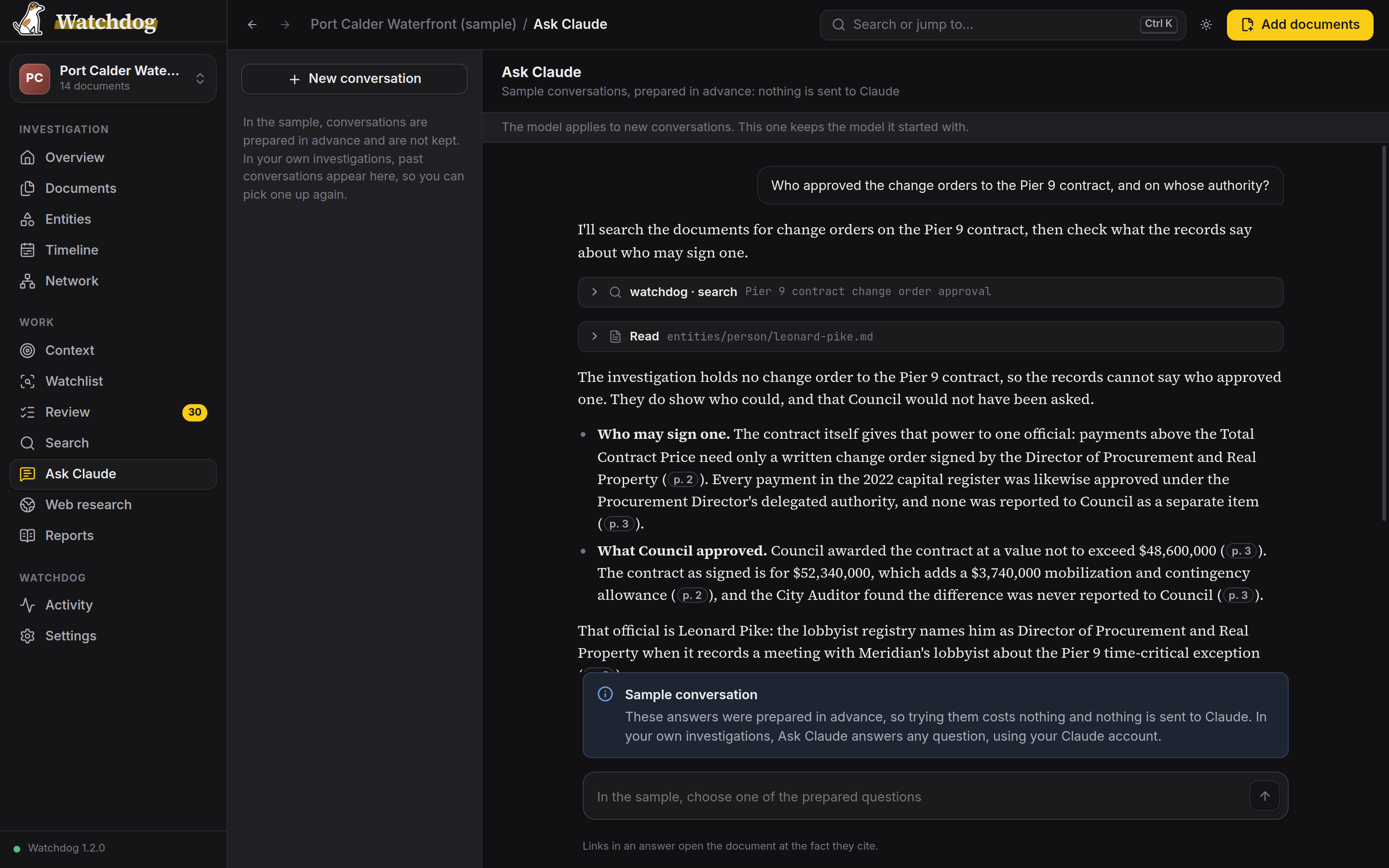
A question you have typed but not sent stays in the box when you go to another screen and come back, for each conversation, until you quit Watchdog. It is never saved to disk.
The documents Claude reads are treated as untrusted, since any of them could contain text written to steer it. So a conversation stays inside its own investigation, cannot read Watchdog's settings or keys, cannot run programs on your computer, and changes no file except its own pages. Before it changes the investigation's records (an entity's summary, a contradiction, the watchlist, the timeline) or fetches a web page, the app shows what it is about to do and asks. Allow once allows that one action; Allow for this conversation stops asking for that kind of change until you close the chat. Every change Claude makes is recorded in history. Adding documents, merging entities and marking items handled stay with you.
With the Wayback Machine keys set up (see the Settings reference), you can also ask Claude to save a web page to the Wayback Machine. It asks first, and Watchdog sends the page with your keys, so Claude only ever sees the archive link.
Start from a question in plain language or one of the shortcuts below, shown as cards on an empty conversation. Typing / in the box lists them too:
- Answer a question answers a question with a source for every claim, and saves substantive answers to Reports.
- Find connections looks across the whole investigation for shared addresses, people in unusual roles, recurring names and chronological anomalies.
- Refresh an entity refreshes an entity's summary and timeline from all its documents.
- Write thread pages writes thread pages, saved to Reports, for findings that have grown into a real angle.
- Check the investigation checks for orphaned notes, broken links and open contradictions.
- Draft a records request drafts a records request (freedom of information, access to information or public records) for documents in Requests, or for any record you name. It takes the record's title, dates and file numbers from your documents, asks where you will file it, and saves the draft to Reports with a list of what to check before filing. The draft names no law, fee or deadline unless you give it one, since those differ from place to place. A request letter tells the body what you know, so Claude points out any detail that comes from a document that is not public and asks before using it. Claude never files anything.
A selector chooses the Claude model for new conversations: Sonnet, the default, or Haiku, which is cheaper and suits simpler questions. Ask Claude always runs on Claude, whatever the other steps use.
#Web research
When a question needs more than the investigation's documents, Web research can look it up. Enter a question, or leave the box blank for Claude to propose one from the investigation's gaps. Claude proposes a mission, confirms how wide to cast the net (quick, standard or deep), researches in rounds, checking in with you, and writes a memo to Reports. Here, unlike in Ask Claude, it searches the web and reads pages without asking you each time, since that is the whole job; anything that would change the investigation still asks.
Web research never writes to the investigation. It queues the sources it keeps, each with its address, a reliability tag and why it matters, and nothing is downloaded until you choose Download. The sources then go through the same reading and extraction as any document, so a blog post is never confused with a primary record. Queued sources survive an interrupted session. A source that can't be downloaded (the site refuses, takes too long to answer, or sends back a page with no text, even in the capture browser when it is installed) is listed as not downloaded, with the reason; Try again retries it, Remove takes it off the list, and you can open it in your browser and save it yourself. With the optional capture browser installed (see Install), pages are saved as full snapshots; Web archiving can also save each source to the Wayback Machine.
#Reports
Reports gathers everything Watchdog and Claude write for you to read. Pinned at the top are Current state (where the whole investigation stands, built from its records) and the processing history. Below them, Saved answers and threads holds the pages Claude has saved from Ask Claude: answers, records requests and thread pages. Then come the briefing from each run and the research memos, grouped by month. A briefing is listed by what its run added, such as "4 documents added · 8 new entities", with the date and time below; a research memo is listed by the subject it researched. Leads, gaps and watchlist alerts are not listed here: you work through them in Review. The number beside each heading counts its items. The investigation's brief has its own screen, Context.
#History and your notes
Entity pages, a document's Notes tab and the pages Claude saves each have a Your notes section that is yours alone. Watchdog never writes to it, and it survives every run. Edit notes opens it; notes are plain Markdown and save as you type.
Watchdog keeps the earlier versions of what it writes. History, on every entity, document, briefing, saved page, context.md and the watchlist, lists a file's versions with when and why each was recorded ("Documents added: contract.pdf and 3 more", "Merged The City into City of Port Calder (by you)"). Select one to see what changed. Your own pages can be restored whole with Restore this version; for entity and document notes, which are rebuilt from the facts on every run, Restore my notes puts back your notes section.
If an earlier version holds something that should not be kept, such as a source's name typed into your notes, take it out of the file, then choose Remove… on the version in History. Watchdog says how many stored copies will be deleted; it cannot be undone. Settings → Version history → Clear history… removes every past version. A copy made by a backup or a sync service is not affected.
#Activity and Maintenance
Activity lists everything the app has run, with its full output; Stop ends a run cleanly so it can be resumed. While something runs, a card in the corner of the window shows its progress. Usage shows tokens, cost and timing for each run and each Ask Claude conversation; on a subscription, the figures are what the work would cost at published rates, marked as not billed once Claude Code has confirmed the subscription paid (see Models and cost).
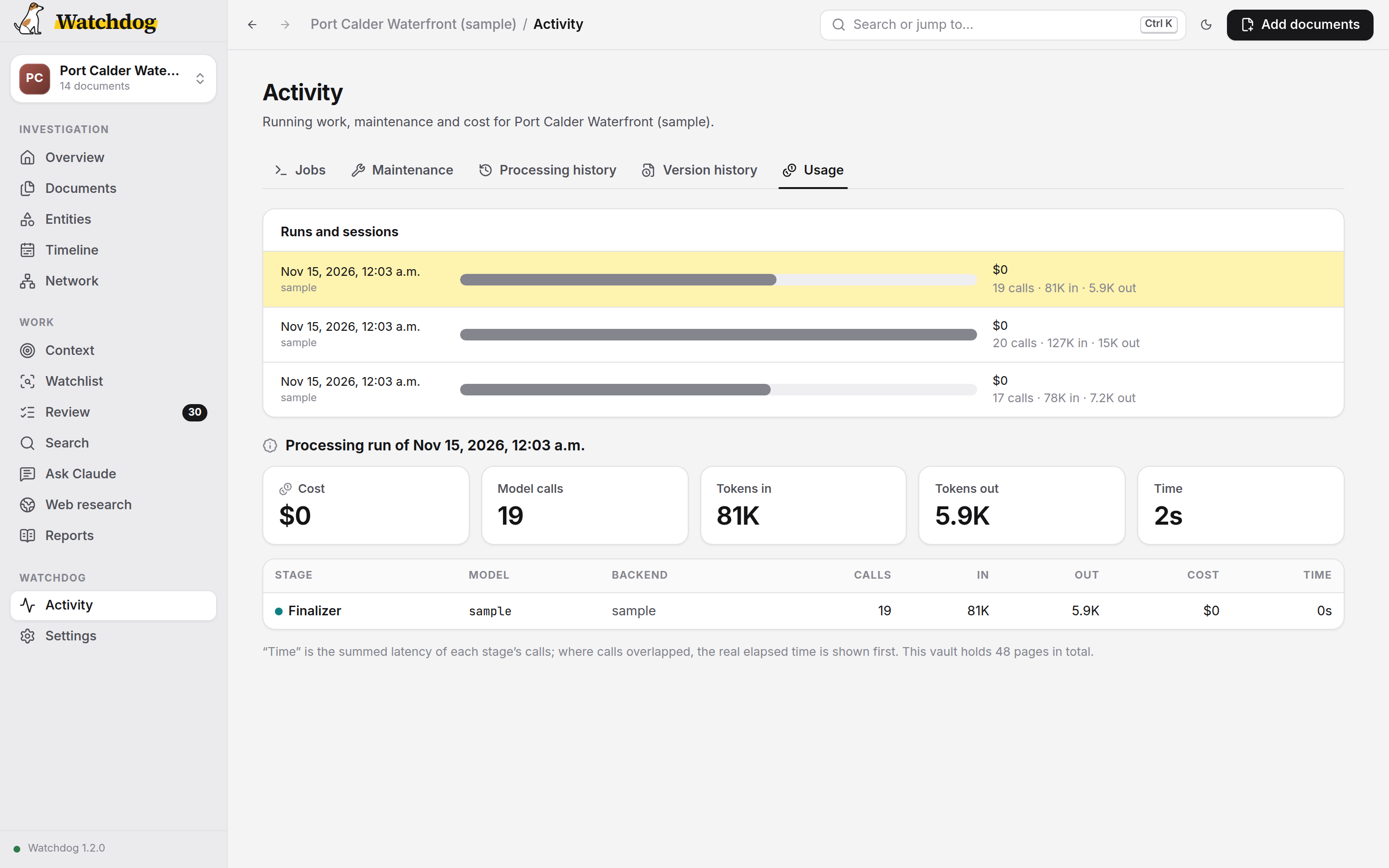
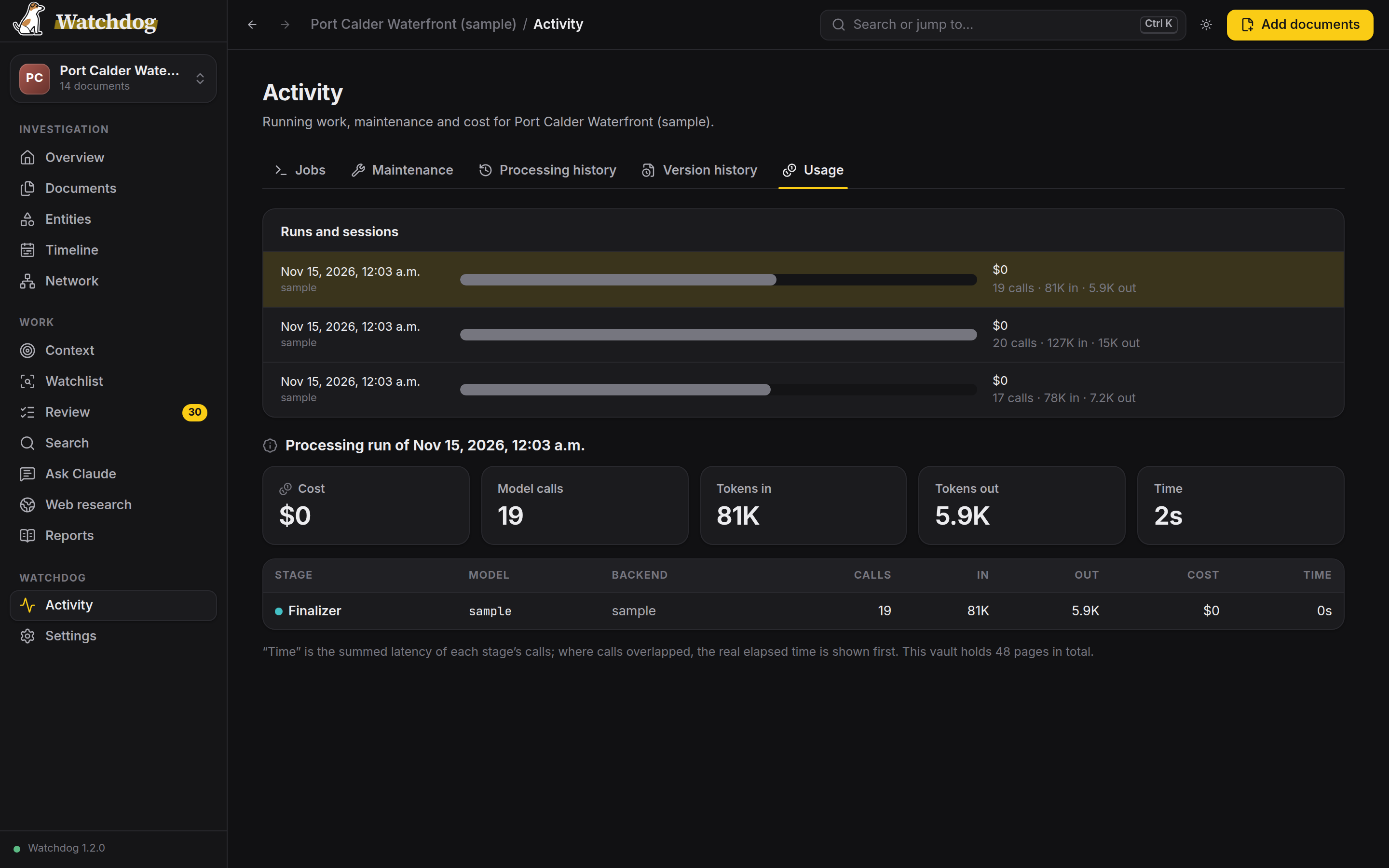
Maintenance runs each step of adding documents on its own, plus repairs. Each card says what it does, and anything that sends text to a model shows the public-records warning first.
| Card | What it does |
|---|---|
| Pre-processing | Converts every file waiting to be added to text on your computer, and lists the names and figures on each page. |
| Processing | Extracts facts with a model and stages the result, with Estimate first. |
| Post-processing | Finishes a batch: merges entities, flags contradictions, writes summaries, the timeline and the briefing. Safe to run again. |
| Requeue failed documents | Puts failed documents back in the queue. |
| Lead sweep | Refreshes the leads and gaps, with no model call. |
| Check citations | Lists citations whose fact can no longer be found. |
| Re-check contradictions | Re-checks every entity with two or more facts. |
| Bring this investigation up to date | Applies improvements made since its documents were processed. |
| Rebuild the timeline | Regenerates the timeline from the records. |
| Rebuild notes | Rewrites every entity and document note from the records, keeping your notes. No model call. |
| Rebuild the search index | Rebuilds search from what Watchdog has already read, after changing the search model or merging entities. |
| Export the graph | Writes entities and relationships as CSV or a Cypher script for tools such as Neo4j or Gephi. |
| Export a copy for troubleshooting | Writes either a text report of counts alone, safe to post with a report of a problem, or one zip file of Watchdog's records and notes for this investigation, for your own use, never for an issue. The dialog shows the report in full before it is saved. The original documents go in the zip only if you include them. See sending a copy of the investigation. |
| Saved model reasoning | Saves one run's model reasoning to a zip, or clears what was saved, when Save model reasoning is on. See sharing debugging information. |
| Refresh Claude setup | Updates this investigation's instructions and shortcuts for Claude. Watchdog does this by itself whenever a conversation starts; use it to do it now, for example before opening the folder in Claude Code. |
#Bringing an investigation up to date
Watchdog keeps improving how it reads documents, but most improvements apply as documents are processed, so an investigation started with an earlier version does not get them for the documents it already holds. When there is something to apply, the Overview shows Watchdog has improved since these documents were processed once, and Activity → Maintenance → Bring this investigation up to date keeps it until it is done. A new investigation never needs it.
Review the steps lists what would change, how many model calls each step needs and one estimate of the cost, before anything is sent. The steps are:
- Cost of past long prompts. Before this version, a model call whose prompt was over the model's long-prompt line was recorded at the lower rate, although the provider billed all of it at the higher one. Watchdog prices those calls again from the token counts it stored, so Activity → Usage matches your bill (a key's spending limit keeps the amount it had already counted); the step's summary gives the total before and after. No AI model is used, and an investigation with no such call skips the step.
- Free fixes to saved extractions. Points a fact's entity tag at the entity its document meant when the tag is a near miss, and moves the citations of a one-page text (a plain-text, CSV or Markdown file) to page 1, with their quotes and passages found again. No AI model is used.
- Dates lost by the old date reader. Before October 2026, a date the date reader could not read was erased. Watchdog reads it back from the fact's own words when they state exactly one full date; the AI model reads the others that name a year, and its dates are marked inferred, as on any fact. A fact whose words name no year stays undated: only processing its document again could recover a date that was printed there.
- Records with the same name. Compares every group of records that share a name and type, as processing now does for the groups a new batch touches. Each merge is recorded under Merges and can be undone; records the model cannot tell apart go to Possible same entities.
- Housekeeping over every document. Matches fact tags and relationships that name no entity to the entity meant, and groups the places document requests can be got from, over every document rather than only the latest batch. What the model matched is marked inferred.
Afterwards, the notes and the timeline are rebuilt. Your marks on facts, handled Review items, removed entities and wordings you showed apart are kept; a mark moves with its fact when the fact's page is corrected. The steps run one after another and respect the investigation's spending limit. If one stops, at the limit, on a failed call or when you choose Stop, the steps that finished are kept and the rest wait: run it again to finish them. Each run is one version in History.
#Managing investigations
All investigations (click the investigation's name at the top of the sidebar) lists every investigation with its counts and anything that needs attention. The ⋯ menu on each offers Rename…, Edit description…, Move to another folder…, Archive (hides it from the list and from cross-investigation search), Show in folder, Open in Obsidian, Processing history, Remove from Watchdog… (its files stay on disk) and Remove and delete files…, which deletes the folder after you type its name. Add existing folder… brings an investigation folder back, and Settings → Check vaults looks for any whose folder has moved or broken.
The sample investigation is listed here with a Sample label; its menu adds Take the tour and Rebuild the sample….
#Your files and Obsidian
Each investigation is an ordinary folder of Markdown files (plain text with light formatting) on your computer, and nothing in it is in a proprietary format. You can do all your work in the app, but the files are yours and stay readable without it. File → Show in Folder opens the folder. The parts worth knowing:
entities/anddocuments/hold a note for every entity and document, rebuilt from Watchdog's records on every run, apart from your notes section. A deleted note comes back with Rebuild notes.morgue/holds every original file after it is processed, beside its full extracted text, in a folder named after the entity the document is mainly about. A document that shows no clear subject (an unreadable scan, a cover page) goes inmorgue/_no-subject/instead, rather than under a made-up "Unknown" entity.briefings/,queries/andwiki/hold what Watchdog and Claude write for you to read.context.mdis your brief, andcontext/the background material it was drawn from.timeline.md,verification.md,merges.md,requests.mdandwatchlist.mdare written records of what the app shows. Edit them in the app, not on disk.incoming/holds files waiting to be read, withfailed/andskipped/for files that could not be read or were set aside.- Hidden folders (
.watchdog/,.claude/,.obsidian/) hold Watchdog's internal records, Claude's instructions and Obsidian's settings. Do not edit them by hand.
Obsidian, a free note-taking app, opens an investigation as a vault: Open in Obsidian on an investigation, document, entity or note opens it there. Every citation in a note links to the page of the original file, and dashboard.base shows live tables (Obsidian Bases) of the most-mentioned entities, recent documents and single-source entities. You do not need Obsidian to use Watchdog.
#Folder access
Watchdog changes files only in folders you have allowed, which limits the damage if a document contains instructions meant to trick an AI, or if something goes wrong. You allow a folder by choosing it for a purpose: the folder that holds your investigations, an existing investigation, a destination to move or export to. Settings → Folder access lists each allowed folder, and Allow a folder adds one; a folder inside one already allowed is covered by it, so it is not listed again. Remove access stops Watchdog changing files there and deletes nothing. If you open an investigation outside the allowed folders, Watchdog asks before it does anything. Reading is not limited.
Where next: How it works for what happens to your documents and why, or Troubleshooting if something is not working.